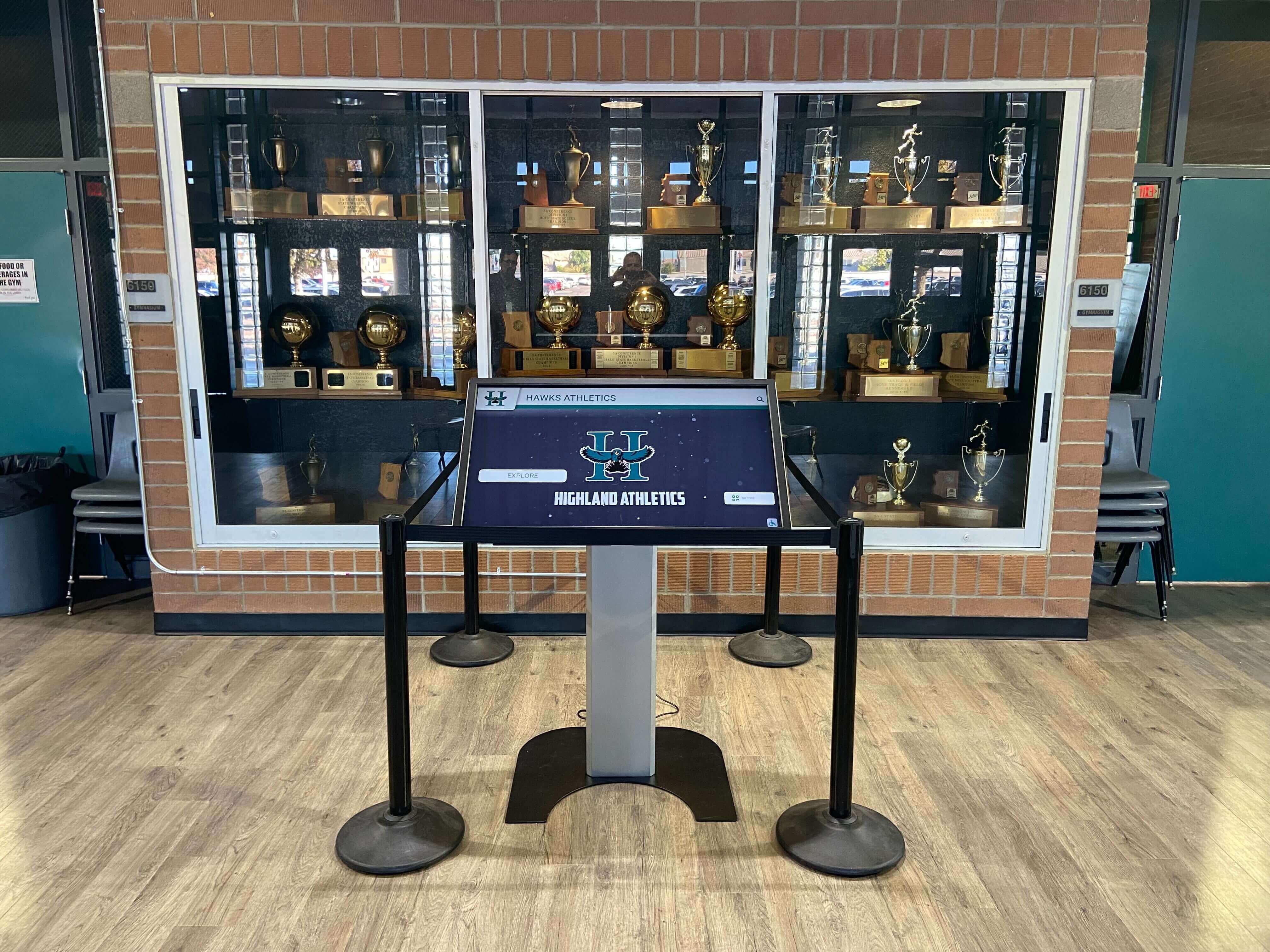
The Easiest Touchscreen Solution




Live Example: Rocket Alumni Solutions Touchscreen Display
Interact with a live example (16:9 scaled 1920x1080 display). All content is automatically responsive to all screen sizes and orientations.
Most schools have more awards than anyone knows about. State championship trophies sit in locked cases in the main hallway. Conference plaques from the late 1990s occupy the bottom shelf of a storage closet. A box of individual all-state awards from three coaching regimes ago has migrated from the athletic office to the booster room to who knows where. No one has a complete count, no one knows exactly what condition everything is in, and no one has photographs of half of it.
A trophy case inventory spreadsheet is the document that ends that problem. It gives athletic directors, administrators, and advancement teams a single authoritative record of every physical award the school owns — what it is, where it lives, what it looks like, and what it represents. That record becomes the foundation for trophy case reorganization, insurance documentation, capital improvement planning, and — for schools ready to take the next step — the content backbone of a digital trophy case or touchscreen wall of fame.
This guide walks through exactly which fields to include, why each one matters, and how a complete inventory transforms an overlooked administrative task into a strategic asset for recognition, alumni engagement, and community pride.
Before the spreadsheet fields, it helps to understand what a well-run trophy case inventory actually enables. This isn’t a one-time cleanup project — it’s a living document that serves multiple audiences across the school year. Athletic directors use it to know what needs repair or replacement. Facilities staff use it when reconfiguring display cases. Advancement teams use it during capital campaigns when a donor wants to see the school’s competitive history. And communications staff use it when building retrospective content for season recaps, reunion programs, and social media.

Many schools discover the full scope of their award collection only after completing a systematic inventory — the first step toward any modernized recognition display
Why Most Schools Are Flying Blind
The gap between the awards a school actually owns and the awards school staff can confidently account for is usually larger than anyone expects. Physical trophy cases display what fits, not what exists. Awards cycle in and out of storage based on available shelf space rather than competitive significance. Plaques get relocated during facility renovations and never fully retracked. Photos that accompanied original award presentations get separated from the hardware over time.
When schools begin building or upgrading trophy display cases, they frequently discover that the planning process requires a complete inventory they don’t yet have. The same discovery happens during end-of-season sports recap projects, when staff need historical context and find the records incomplete.
A spreadsheet built with the right fields from the start eliminates those gaps systematically.
Core Award Identification Fields
Every row in your trophy case inventory spreadsheet represents a single physical object. These fields establish what that object is.
Award Name and Description
Award Name — The official name as it appears on the hardware: “IHSA Class 3A Regional Championship,” “District Athletic Conference All-Sportsmanship Award,” or “Head Coach Tom Bradley Memorial Trophy.” Use the inscription verbatim when possible.
Award Type — A controlled vocabulary field helps with filtering and sorting. Common values include: Trophy, Plaque, Banner, Medal (framed), Certificate (framed), Traveling Trophy, Shadow Box, Engraved Plate. Keep the list consistent so you can sort by type across hundreds of entries.
Award Category — Team Championship, Individual Honor, Coach Recognition, Sportsmanship, Academic Achievement, Program Milestone, Donor/Sponsor Gift. This field powers the most useful reports — for instance, quickly pulling all individual honors for a hall of fame nomination review.
Sport or Program — Football, Girls Basketball, Academic Decathlon, Student Council, Drama. Include non-athletic programs if you’re doing a school-wide inventory; athletic directors doing a sport-specific audit can limit scope here.
Division or Level — Conference, Regional, Sectional, State, National, Invitational, School Record. This tells you the competitive weight of the achievement at a glance.
Achievement Details
Award Year — The academic year the award was earned, formatted consistently: 2024–25. If the inscription shows only the calendar year, note that with a clarifying comment. For older awards where the year is uncertain, enter your best estimate and flag it for verification.
Season — Fall, Winter, Spring. Useful for organizing display rotations and building out comprehensive digital records for athletic signing day materials and program histories.
Finish or Placement — 1st Place, 2nd Place, Runner-Up, Participant, Conference Champion, State Qualifier. This matters more than it might seem. It lets you distinguish between championships and runner-up awards when evaluating display prominence.
Team or Athlete Name(s) — For team awards, name the team (Varsity Girls Volleyball). For individual awards, list the recipient’s full name as it appears on the award. If the award doesn’t name individuals, note “No individual names listed.” This field becomes critical when transitioning to digital recognition systems that surface individual athlete records.
Coach at Time of Award — Ties the achievement to a coaching era, which matters enormously for alumni engagement. Former players want to see their coach’s name connected to the awards they helped earn.
Location and Storage Fields
One of the most practical uses of a trophy case inventory spreadsheet is knowing exactly where each item is. These fields make that possible without walking the building.
Primary Location — Main Trophy Case, Athletic Office Hallway, Gymnasium Lobby, Storage Room B, Booster Club Room, Principal’s Office. Be specific enough that any staff member could find the item without guidance.
Case or Section — Within a display location, specify the exact cabinet, shelf, or section: “Main Case North — Middle Shelf,” “Gym Case 2 — Top Shelf Right.” Add a numbered diagram of your display cases to the spreadsheet’s reference tab for clarity.
Storage Status — Displayed, In Storage, In Repair, On Loan, Location Unknown. The “Location Unknown” category typically produces surprises — schools regularly discover 10–20% of their inventory falls here until someone does a systematic walk-through.
Storage Container — For items not on display: Box A-12, Cabinet 3 Drawer 2, Athletic Office Closet Shelf 3. This field only matters if your storage is organized enough to use it — but building the field now creates the right habit.
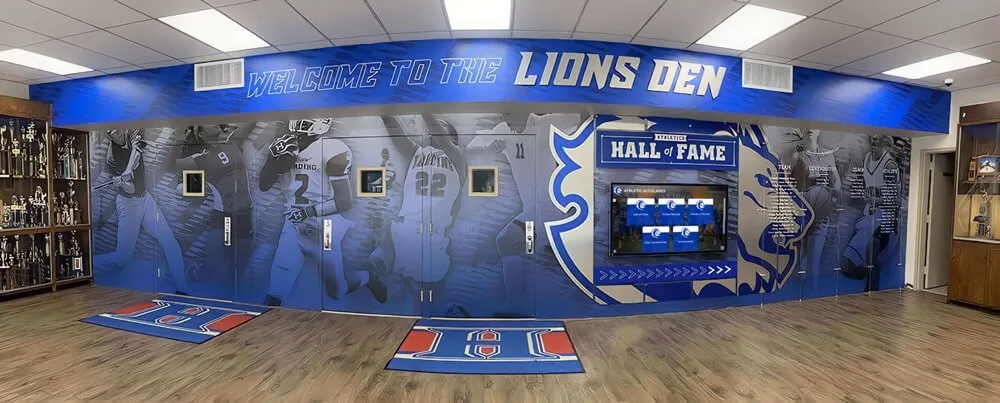
Schools that complete full trophy case inventories often discover awards in storage that deserve featured placement in visible hallway displays
Physical Condition Fields
An inventory that ignores condition is only half useful. These fields support maintenance planning and help prioritize conservation work before deterioration becomes irreversible.
Overall Condition — Use a simple four-point scale: Excellent, Good, Fair, Poor. Excellent means display-ready, no visible damage. Good means minor wear consistent with age. Fair means visible damage that doesn’t affect inscription legibility. Poor means significant damage — broken hardware, missing components, illegible engraving.
Condition Notes — Free text for specifics: “Base plate has 2-inch crack,” “Team name plate is loose,” “Trophy figure is missing from mount,” “Tarnish covers approximately 30% of surface.” These notes feed directly into maintenance request decisions.
Cleaning Status — Clean, Needs Cleaning, Recently Cleaned (Date). Display-quality cases require that hardware looks its best. Knowing cleaning status across the full inventory helps schedule efficient maintenance windows.
Inscription Legibility — Fully Legible, Partially Legible, Illegible. This affects whether the award can be meaningfully displayed. Illegible inscriptions may need re-engraving or supplemental signage to retain recognition value.
Restoration Needed — Yes / No / Already in Progress. A filtered view of this column generates a repair priority list without any additional work.
Photo Documentation Fields
Photographs are arguably the most important part of a trophy case inventory, and the most commonly skipped. These fields create the connective tissue between your physical collection and any future digital display initiative.
Photo Exists — Yes / No / Needed. Start here. Knowing the gap between items that have photos and items that don’t tells you exactly how much photography work remains.
Photo File Name(s) — The filename(s) of the corresponding image(s) in your file system or digital asset library: varsity-football-ihsa-2019-regional-trophy.jpg. Consistent naming conventions here save hours of searching later. Schools building toward a comprehensive digital asset management system for school records will find this field becomes the bridge between the physical inventory and the digital archive.
Photo Location/Folder — Where in your file system or cloud storage the photo lives: /Awards/Football/2019-20/ or a shared drive path. Without this field, photos become orphaned from their records as folders get reorganized.
Photo Quality — High-Res (Print Ready), Web Resolution, Low Quality/Needs Retake. This prevents using inadequate images in printed materials or digital displays and flags retakes before they’re needed urgently.
Supplemental Media — Team photos, newspaper clippings, game programs, highlight video clips, or other supporting documentation associated with the award. Note file names or physical archive locations. This is what transforms a trophy entry into a rich recognition story.
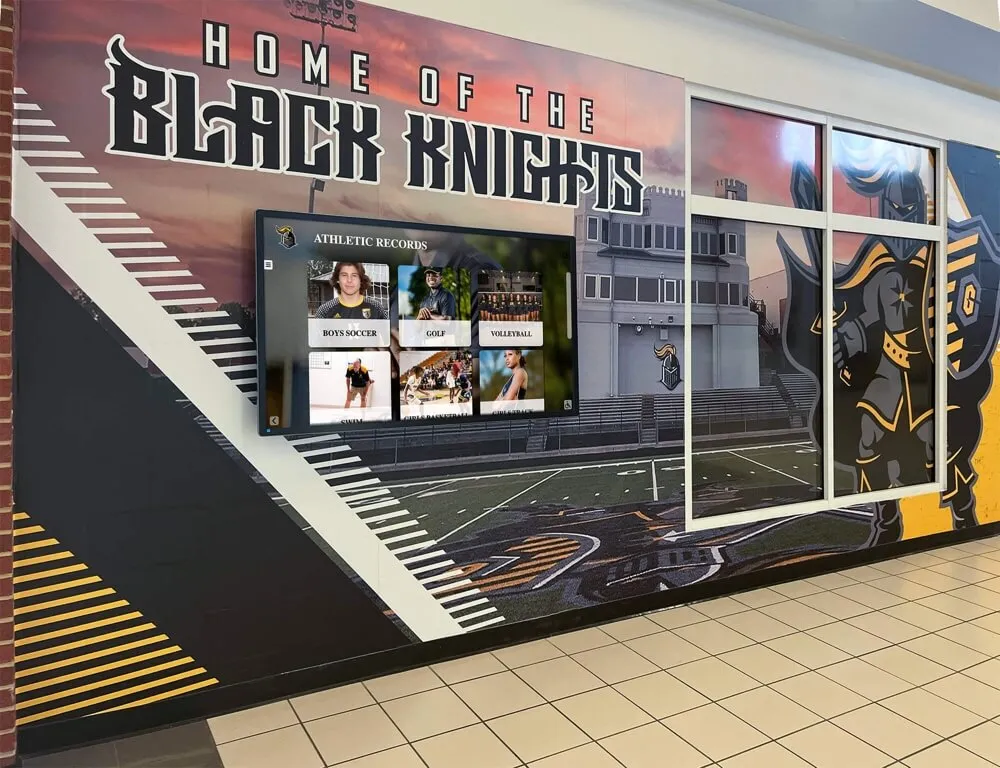
Complete photo documentation during the inventory audit becomes the content foundation for digital hallway displays like this one
Administrative and Provenance Fields
These fields support institutional memory and compliance — less exciting, but essential for schools that are serious about their records.
Year Acquired / Donated — When the school received the item. Differs from award year for traveling trophies, donated memorabilia, or awards received years after the original achievement.
Donor or Source — Who provided the award: Conference Office, State Association, Boosters, Anonymous Donor, Named Individual. Donor fields directly support advancement work. When a donor or sponsor asks whether their contribution is recognized, staff can answer immediately. Schools reviewing physical and digital donor display solutions find that accurate donor attribution in the award inventory makes building recognition programs significantly easier.
Monetary Value (Appraised) — For insurance purposes, particularly for significant historical awards or unique pieces. Most schools will leave this blank for standard trophies but should complete it for any award with genuine replacement or collector value.
Traveling Trophy / Return Required — Yes / No. Traveling trophies need to be returned to the awarding organization at the end of the holding period. A filtered view of this column generates a return-due list before anyone has to remember it manually.
Digital Integration Fields
For schools planning to move from a physical-only collection to a digital recognition display — or that already have one — these fields create the connection between the spreadsheet and the screen.
Digitized for Display — Yes / No / In Progress. Tracks completion of the content migration work required to feature an award in a digital system.
Digital Platform Entry ID — If you’re using a digital trophy case platform, this field holds the unique record ID or URL that corresponds to this physical award. It creates a two-way link: you can find the digital record from the physical inventory and vice versa.
Display Priority — High (Featured), Medium (Standard Archive), Low (Background Archive). Schools can’t feature every award prominently, even in a digital system. Flagging display priority during the inventory saves hours of editorial decision-making later.
Linked Athlete Profiles — Names or IDs of athletes linked to this award in your recognition system. For individual honors, this creates the connection between award records and athlete profiles — the data structure that powers searchable alumni recognition.
Public or Internal Record — Public (Visible on Digital Display), Internal Only. Some awards may be appropriate for staff records but not for public display — administrative recognitions, internal program notes, or items pending verification.
Additional Administrative Notes
Notes — A free-text field for anything that doesn’t fit elsewhere: “One of only three schools to win this award,” “Trophy was restored in 2018 by School Booster Club,” “Original award was lost; this is a replacement issued 2003.” These notes preserve institutional memory that disappears when long-tenured staff leave.
Last Verified — Date the record was last physically confirmed. An inventory that’s never reverified becomes stale. Building a verification date field creates accountability for keeping the record current — aim to verify active display items annually and storage items every two to three years.
Assigned To — Staff member responsible for this record’s accuracy. Works well for large inventories split across departments — athletic director owns sport trophies, advancement owns donor-recognized awards, principal’s office owns academic and leadership recognition.
Running the Initial Audit
The spreadsheet template only works if you complete the audit systematically. These operational steps get the inventory from empty spreadsheet to usable record.
Start with what’s visible. Walk every display case in the building with a laptop or tablet, entering each item as you go. Document condition and photograph every award before moving on. The temptation to photograph everything at the end and then match photos to records is a trap — it creates hours of reconciliation work.
Then work through storage. Designate a workspace and bring all storage boxes to it. Process one box completely — enter, photograph, note condition — before opening the next. Leave no item undocumented, even if the entry is minimal (Award Type: Trophy; Condition: Poor; Inscription: Illegible; Year: Unknown).
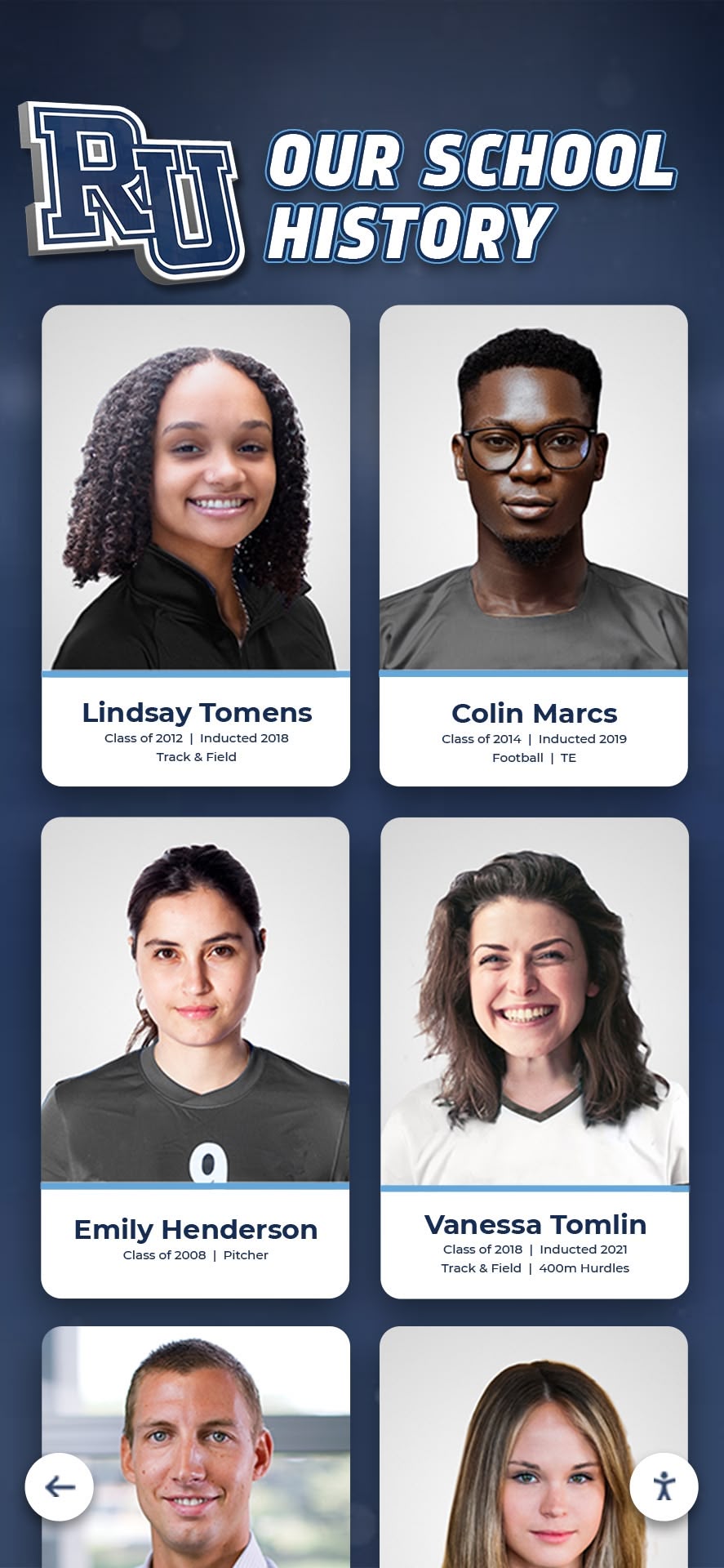
A completed trophy inventory becomes the source record for building athlete and team profile displays like this one, connecting physical awards to digital recognition
Verify against existing records. Cross-reference your completed inventory against any historical records the school has — yearbooks, programs, newspaper archives, athletic department files. Schools building comprehensive alumni recognition walls and bringing former athletes back into school recognition programs routinely find that their inventory audit surfaces awards and achievements that weren’t visible in existing records.
Flag gaps explicitly. Don’t leave the “Award Year” field blank for an undated item — enter “Unknown” and flag it for follow-up. Blank fields look like missing data; “Unknown” looks like an acknowledged gap that someone will eventually close.
Distribute photography systematically. If a single staff member is photographing everything, schedule dedicated photography sessions with good lighting. If multiple people are contributing photos, establish a naming and folder convention before anyone shoots a single image, or you’ll spend as much time reorganizing files as you saved by distributing the work.
From Inventory to Action
A completed trophy case inventory spreadsheet directly supports several high-value projects schools commonly defer because they lack the underlying data.
Display reorganization. Filtered views by sport, year, condition, and location make reorganization planning fast. You can identify which awards should be moved from storage to display, which items need repair before they’re display-worthy, and which cases are overloaded relative to others across the building.
Capital improvement planning. Administrators requesting budget for new display cases can demonstrate the scope of the collection — total item count, items currently in storage for lack of space, items in poor condition due to inadequate housing. Numbers anchor budget requests in ways that anecdotal descriptions don’t.
Digital trophy case migration. Schools building toward a digital display board for school lobbies and entrances or a touchscreen wall of fame need exactly the data fields described above — award names, years, teams, athletes, photos, and descriptions — pre-populated and organized. A complete inventory cuts the content migration work from months to weeks.
Mock trial and academic program recognition. Schools that honor academic competition teams like mock trial often discover those awards are scattered across different storage locations with no unified record. Including academic program recognition in the physical inventory means those achievements are positioned for the same digital recognition treatment as athletic awards.
Donor and advancement outreach. Development staff preparing for capital campaigns or annual fund asks can pull a filtered view of donor-recognized awards to confirm attribution accuracy, identify recognition gaps, and prepare materials showing how the school has honored past contributors.
Maintaining the Inventory Over Time
An inventory that lives only in the past quickly loses its value. These practices keep the record current.
Add new awards immediately. Create an entry for each award within two weeks of receipt. Waiting until the end of the season means relying on memory to fill in fields — memory that fades faster than anyone expects.
Assign clear ownership. One person should own each section of the inventory and be responsible for updates. A shared document with no designated owner becomes a document no one updates.
Schedule annual reviews. Every fall, verify display items against the inventory. Every other fall, spot-check storage items. Flagging the “Last Verified” date makes it easy to identify records that have drifted from physical reality.
Archive rather than delete. When an award is retired, moved permanently to a family, or disposed of, change the status rather than deleting the row. Historical completeness matters — an award that existed is part of the school’s record even if the physical object no longer resides at the school.

Inventory fields that capture athlete names, award details, and photos map directly to the data structure powering touchscreen hall of fame displays
The Connection to Digital Recognition
A trophy case inventory spreadsheet is not just an organizational tool — it’s the prerequisite for any serious digital recognition initiative. Every field described above maps to content that powers digital displays, searchable databases, and interactive touchscreen systems.
Award names and descriptions become the searchable archive entries that alumni browse on a lobby touchscreen. Team names and athlete names become the linked profiles that connect an award to the people who earned it. Photos become the visual elements that make digital recognition compelling rather than clinical. Location fields inform which physical items to feature prominently alongside digital content in hybrid display installations.
Schools that complete a physical inventory before investing in digital recognition make the transition dramatically smoother. Instead of trying to gather content while simultaneously building a display system, they arrive at the digital phase with organized, verified, photographed data ready to migrate.
See How Your Inventory Becomes a Digital Trophy Case
Rocket Alumni Solutions helps schools transform their physical award collections into engaging digital trophy cases and touchscreen walls of fame — starting with the inventory data you've already gathered. See how athletic directors and advancement teams use the platform to showcase complete program histories, connect alumni to the achievements they remember, and give every award the visibility it deserves.
Book A DemoThe trophy case inventory spreadsheet is where every school recognition project starts, whether the end goal is a reorganized physical display, a printed history for a program anniversary, a digital kiosk in the gymnasium lobby, or a comprehensive searchable archive that alumni can explore from anywhere. The fields described here — award identification, location, condition, photo documentation, administrative provenance, and digital integration — cover the full scope of what a school needs to manage its recognition heritage responsibly.
Start with what you have. Document what you find. Photograph everything. And build the record that gives your school’s competitive history the visibility it has always deserved.
Live Example: Rocket Alumni Solutions Touchscreen Display
Interact with a live example (16:9 scaled 1920x1080 display). All content is automatically responsive to all screen sizes and orientations.