The Easiest Touchscreen Solution




Live Example: Rocket Alumni Solutions Touchscreen Display
Interact with a live example (16:9 scaled 1920x1080 display). All content is automatically responsive to all screen sizes and orientations.
Intent: research — interactive touch screen digital signage lets visitors browse, search, and engage with content using direct touch rather than passive viewing. This guide explains the underlying technology, the hardware and software components you actually need, the questions worth answering before you purchase, and the ongoing management tasks that determine whether an installation succeeds long-term. Whether you are evaluating a first display or expanding an existing network, the information here will help you make a better-informed decision.
Walk into a modern school lobby, university admissions center, or corporate headquarters and you are likely to encounter a large display where visitors tap, swipe, and search without any instruction. These installations are not simple televisions cycling through slides. They are interactive touch screen digital signage systems—purpose-built combinations of hardware, software, and content that respond to human input and deliver tailored information on demand.
The term “digital signage” covers a wide range of products, and the addition of “interactive” changes the category substantially. Understanding what separates a passive screen from a genuinely interactive display—and knowing what components are required—saves organizations from purchasing the wrong hardware, installing underpowered software, or setting expectations that the chosen system cannot meet.

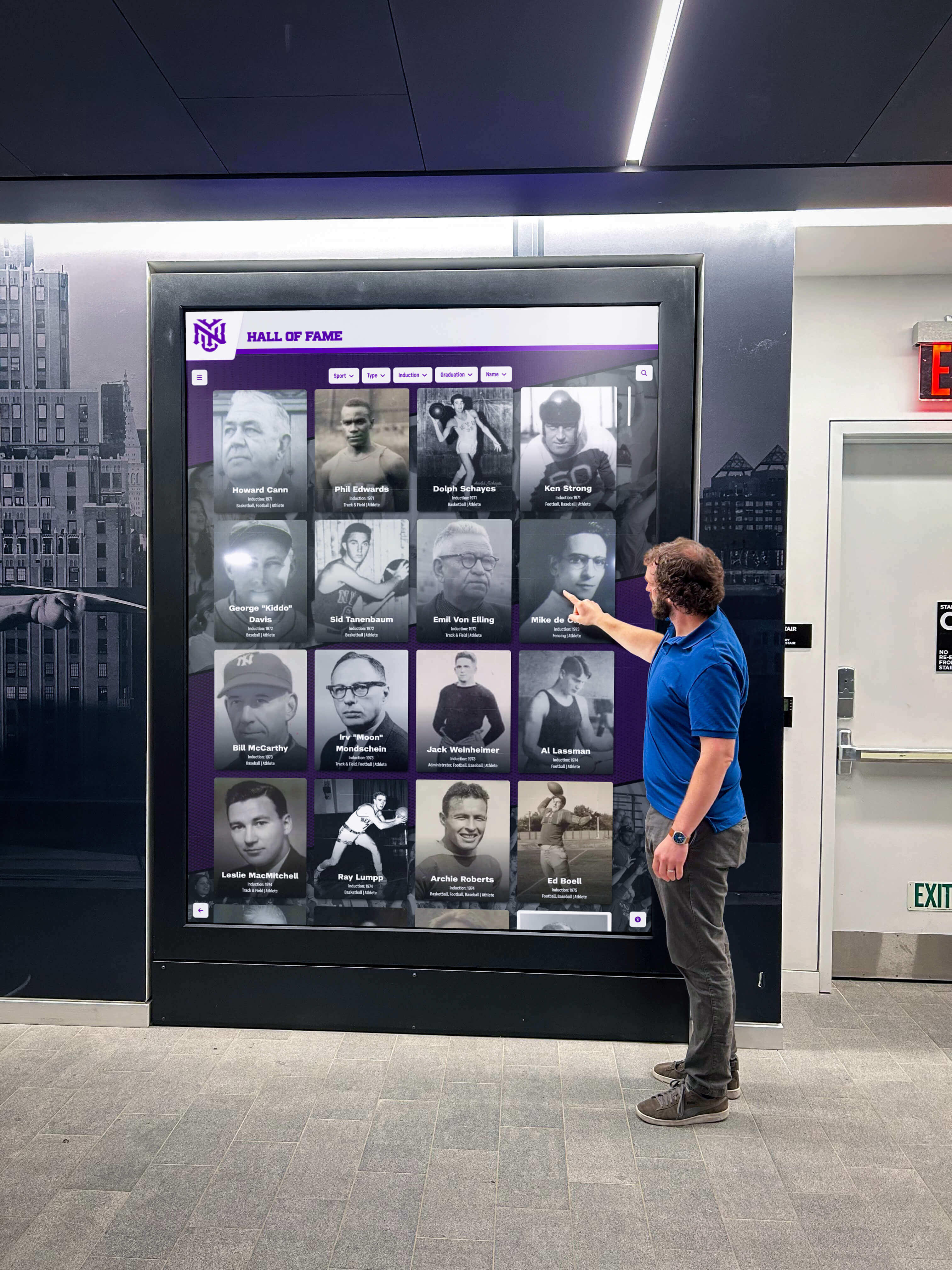
Interactive touchscreen displays in lobby environments invite visitors to explore content on their own terms, without staff assistance
What Is Interactive Touch Screen Digital Signage?
Interactive touch screen digital signage is a category of display technology where the screen surface registers human touch and the underlying system responds with content navigation, search results, or other interactions. It combines a display panel, a touch sensor layer, a computing device, and a content management system into a single coordinated installation.
Standard digital signage—a television or commercial display cycling through images or video—is a one-way broadcast. The viewer watches but cannot control what they see. Interactive signage inverts that relationship. The user drives the session, selecting what to view, searching for specific information, zooming into details, or navigating between content categories.
For schools, universities, and athletic programs, this distinction carries real consequences. A passive display showing last year’s championship team works for ambient awareness. An interactive display lets a prospective student tap through ten years of athletic records, find a specific player’s profile, read their accomplishments, and QR-scan to share the profile with a parent—all without staff involvement.
Digital signage for schools covers a broad range of applications, from wayfinding kiosks in large facilities to dedicated athletic recognition walls—and interactive touch capability is what separates displays that visitors actually use from displays they walk past.
How Interactive Touch Screen Technology Works
Every interactive touch screen system depends on a few core components working in sequence. Understanding each layer helps you evaluate vendor claims and avoid gaps in your specification.
The Touch Sensing Layer
The screen surface must detect where and how a user touches it. There are several sensor technologies in common use, and each carries different implications for image quality, durability, and environment suitability.
Projected Capacitive (PCAP) is the technology behind smartphone and tablet screens. The panel is covered with a grid of transparent conductive layers. When a finger (or capacitive stylus) makes contact, it alters the electrical field at that grid point. The system calculates precise touch coordinates from those changes. PCAP supports multi-touch gestures—pinch-to-zoom, two-finger scroll—and delivers the fast, accurate response users expect from personal devices. Most commercial interactive signage sold today for lobbies and recognition displays uses PCAP.
Infrared (IR) touch uses a frame of LED emitters and receivers arranged around the screen border. When a finger interrupts the infrared beams, the system triangulates position. IR works with any object—finger, glove, or stylus—and scales to very large panel sizes (75 inches and beyond) at lower cost than PCAP at that scale. The tradeoff is that the bezel adds bulk and response can feel slightly less precise than PCAP.
Optical touch and acoustic wave technologies exist in certain specialized applications but are less common in mainstream educational and recognition display installations.
For most school and institutional applications, PCAP on commercial-grade panels delivers the best combination of accuracy, durability, and user experience.
The Display Panel
Behind the touch sensor is the display panel itself. In interactive signage, this is almost always a commercial-grade LCD or LED panel rather than a consumer television. The distinction matters for several reasons:
- Brightness: Commercial panels are specified for 400–700 nits or more, sustaining readability in bright lobbies or near windows. Consumer TVs often dim significantly during extended operation.
- Duty cycle: Commercial displays are rated for 16/7 or 24/7 operation. Consumer TVs are designed for a few hours of daily use and fail earlier under continuous installation conditions.
- Mounting and connectivity: Commercial panels include VESA mounting patterns, multiple input options, and remote management interfaces that consumer units lack.
- Warranty: Commercial units typically carry three-to-five-year warranties covering heavy use, versus one year for consumer products.
Screen size selection depends on the viewing environment. In a lobby where visitors approach the display directly, 49–55 inches works well for individual or small-group interaction. In larger spaces serving groups or designed for ambient visibility at distance, 65–86 inch panels are common.

Commercial-grade interactive kiosks are purpose-built for public environments and sustained daily use—a different category from consumer displays
The Computing Device
The touch panel and display need a computing device to run the software, process touch input, render content, and manage network communication. This component is often called the media player, signage player, or system-on-chip (SOC).
Options include:
Embedded SOC: Some commercial displays integrate a computing module directly into the panel housing. This simplifies cabling and reduces footprint. Processing power is often sufficient for standard content apps but may be limited for complex interactions or high-resolution video.
External mini-PC or signage player: A small external computer (often running Windows, Android, or Linux) provides more processing headroom and easier replacement if hardware needs upgrading without replacing the full display.
Dedicated kiosk computing: Purpose-built kiosk enclosures integrate their own ruggedized computing hardware with the display and touch frame, adding physical durability appropriate for high-traffic areas.
For recognition display and hall-of-fame applications, the computing layer must handle database queries (fetching athlete profiles), image rendering, search indexing, and simultaneous content updates—tasks that quickly exceed the capabilities of low-cost embedded SOC modules.
The Software and Content Management System
Hardware captures touch input and displays pixels. Software determines what happens when a user interacts with the screen. This layer is where the most significant quality differences between interactive signage solutions appear.
A basic digital signage content management system (CMS) allows uploading images, videos, and slideshows to a playlist. That is not interactive signage—it is a managed broadcast. True interactive signage software provides:
- Navigation architecture: Menus, categories, sub-pages, and back navigation that users can browse freely
- Search functionality: Type-ahead or full-text search returning relevant profiles, records, or pages
- Database integration: Real-time queries retrieving content from structured databases rather than pre-rendered images
- Remote management: Cloud-based CMS allowing content updates from any location without physical access to the display
- Scheduled publishing: Content that becomes visible on a future date—useful for recognizing new inductees, upcoming events, or seasonal content
- Analytics: Usage data showing which content users access, how long sessions last, and what searches occur most frequently
The CMS is also where schools manage the ongoing content work that keeps displays relevant. A system requiring IT tickets or vendor involvement for basic updates will create a bottleneck that leads to stale content and declining usage.
Evaluating kiosk software platforms should include testing how quickly non-technical staff can add a new athlete profile, update a record, or publish a future-dated announcement.
Common Types of Interactive Touch Screen Displays
Interactive signage takes several physical forms, each suited to different environments and use cases.
Wall-Mounted Flat Panel Displays
The most common format for school and institutional applications. A commercial touchscreen panel mounts flush or near-flush to a wall, typically 4–6 feet from the floor to center the interactive zone at a comfortable height. Wall mounts range from simple fixed brackets to articulating arms allowing display angle adjustment. In hallway and lobby installations, wall-mounted flat panels provide a clean, integrated look that complements murals, graphics, and surrounding décor.
Freestanding Kiosk Enclosures
Kiosk enclosures house the display, computing hardware, and cabling in a self-contained floor-standing unit. They can be placed without wall access, repositioned for events, and often include integrated cable management and ventilation. Kiosks work well in areas without suitable wall space and in environments where the display should be accessible from multiple approach directions.
Large-Format Video Walls
Multiple panels arranged in a grid create video wall installations that can span entire lobby walls or building facades. In interactive applications, video walls typically pair a touchscreen interaction zone (a single or few interactive panels) with adjacent large-format passive panels displaying related content. This combination delivers dramatic visual presence while maintaining accessible touch interaction.
Tablet and Mobile Extensions
Many interactive signage platforms extend content to mobile devices through QR codes. A visitor at a touchscreen display can scan a code to access the same content on a personal phone—enabling exploration outside the building, sharing profiles with family, or reviewing information after leaving the facility. This feature is particularly valuable for school recognition displays where families visit for events and want to revisit content later.
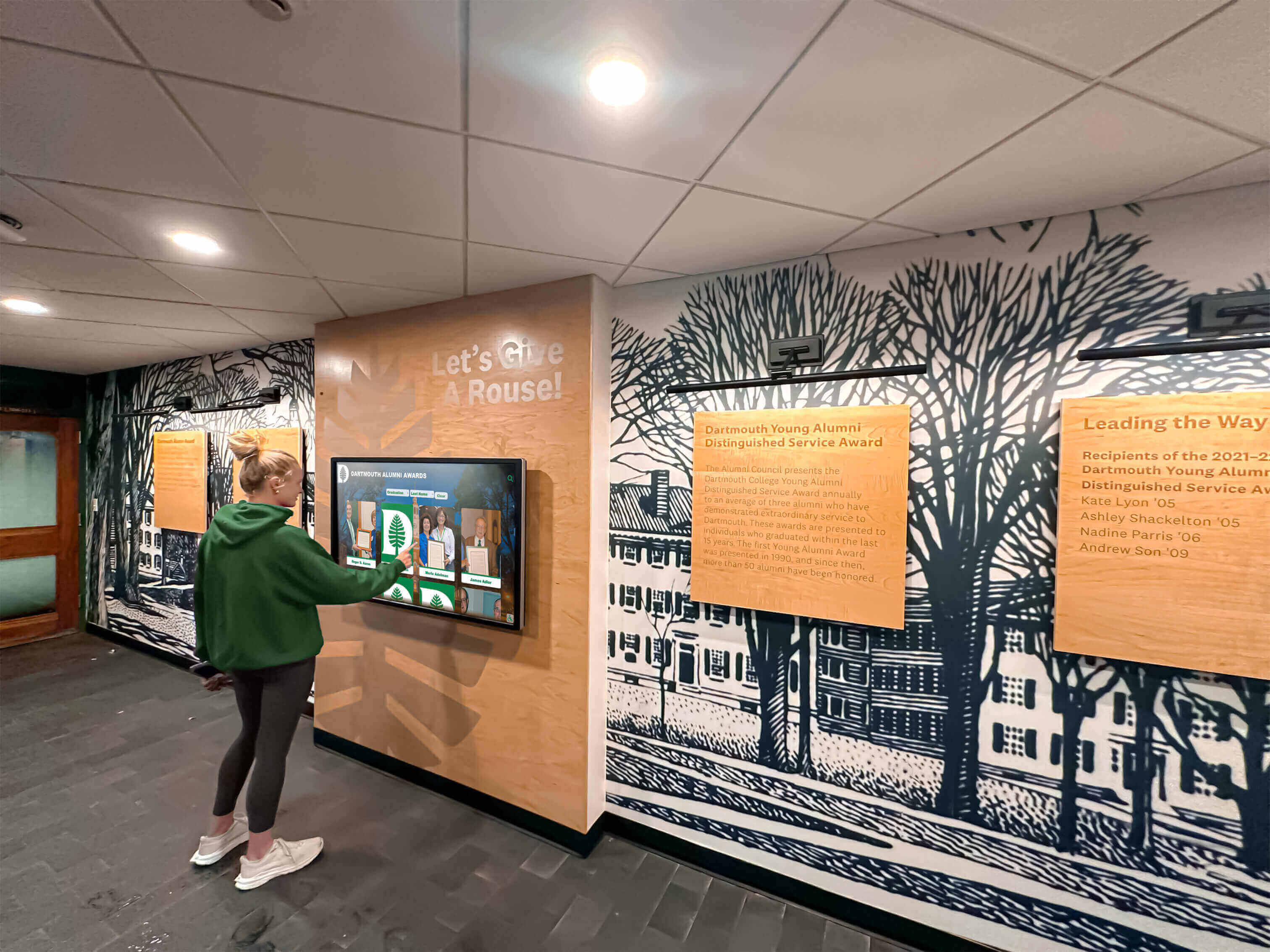
Students and visitors navigate interactive displays without instruction—intuitive design is a core requirement for successful installations
Touch Response and Interactivity Quality
Not all touch screens deliver equivalent experiences. Ultra-responsive touchscreens retain users longer and reduce frustration that sends visitors walking away mid-session. Touch latency (the delay between finger contact and on-screen response) should be below 30 milliseconds for interactions to feel natural. Panels with higher latency or imprecise touch detection create a jarring experience that discourages extended use.
When evaluating displays, request a demo unit in your actual environment. Touch the interface repeatedly in different screen zones. Navigate between pages, type a search query, and zoom into an image. The difference between adequate and excellent touch response becomes immediately apparent through hands-on testing.
What You Need Before You Purchase
Purchasing interactive touch screen digital signage without addressing the following requirements first leads to costly corrections after installation.
1. Define the Primary Use Case
“Interactive signage” is not a use case—it is a technology category. Define specifically what users will do. Will they search for alumni profiles? Browse athletic records by sport and year? Navigate a campus directory? Review event schedules? Each use case requires different software capabilities, content structures, and interface designs. A platform built for wayfinding will not serve an athletic hall of fame well, and vice versa.
2. Assess Your Content Readiness
Interactive signage is only as good as the content behind it. Before purchasing hardware or software, inventory what content you have, what format it exists in, and what work is needed to make it display-ready. Schools implementing recognition displays commonly discover that historical records exist as paper documents, low-resolution scans, or fragmented spreadsheets requiring significant cleanup before they can populate a database.
Content preparation—digitizing records, writing profiles, scanning photographs, and organizing data—typically takes more time and resources than hardware procurement. Budget for it explicitly.
3. Clarify Network Requirements
Interactive signage requires network connectivity for cloud-based content management, remote updates, and analytics. Assess whether your facility provides reliable wired Ethernet or Wi-Fi at each installation location. Wired connections are strongly preferred for reliability. In older buildings without network access near intended display locations, infrastructure upgrades may be necessary.
Some platforms support offline content caching—the display operates from locally stored content when network connectivity is interrupted. Understand whether your chosen software handles offline operation gracefully or goes blank when the connection drops.
4. Understand Mounting and Power Requirements
Each installation location requires power and, preferably, a data connection. Identify electrical outlet locations relative to intended display positions. Running concealed conduit for cables is typically part of professional installation and adds to project cost if not already present. In historic or architecturally significant buildings, surface-mounted cable management may be the only option.
Wall mounting requires locating structural studs or installing backing plates to support commercial display weight (commercial 55-inch panels commonly weigh 50–80 pounds). Verify that intended mounting surfaces can bear the load.
5. Plan for Content Management Staffing
Someone must manage content over time—adding new records, updating photos, correcting errors, and publishing seasonal or event-based content. Before purchasing, identify who will perform this work, confirm they have (or can develop) the skills the CMS requires, and verify that the platform’s management interface is accessible to non-technical staff. Systems requiring developer access for routine updates will accumulate stale content within months.
Finding the right touchscreen display for schools involves evaluating the full system—hardware, software, and content workflow—not only the panel specifications on a data sheet.
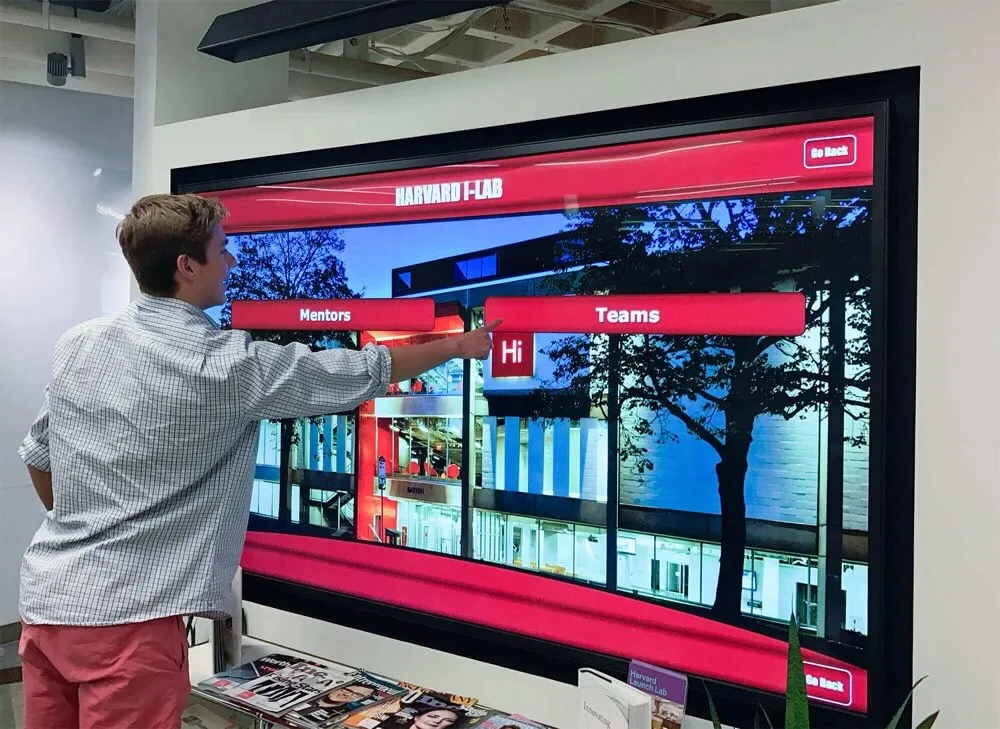
Clear navigation menus allow visitors to locate specific content categories without guesswork—interface design directly affects how long users engage
Where Interactive Touch Screen Signage Works Best
Interactive displays deliver their strongest return in environments where visitors arrive with specific information needs, where content depth exceeds what passive display can present, or where engagement time and user satisfaction are measured.
School and University Athletic Facilities
Gyms, fieldhouses, and athletic lobbies are among the highest-performing environments for interactive recognition displays. Visitors—students, families, alumni, recruits—arrive with genuine interest in athletic history and achievement. An interactive display lets them search for a specific athlete, browse championship records by sport, view historical team rosters, and explore decades of program history in a few minutes.
Touchscreen displays in high school athletic facilities serve multiple audiences simultaneously—current students seeing their contemporaries recognized, alumni connecting with their own history, and prospects evaluating program tradition.
School Lobbies and Main Entrances
Main entrances establish first impressions for every visitor. An interactive display in a lobby communicates institutional pride, technological investment, and community identity before a single conversation takes place. Parents visiting for enrollment, prospective students on tours, and community members attending events all encounter the display. Content can include academic recognition, athletic achievements, donor acknowledgment, and program information—organized for self-service exploration.
Libraries and Media Centers
Libraries have long served as institutional memory repositories. Interactive displays in library spaces can extend that function to digital form—providing searchable access to historical yearbooks, photo archives, alumni directories, and institutional timelines that would otherwise require staff assistance to navigate.
Museums, Galleries, and Heritage Spaces
Interactive touchscreens in museums and galleries provide access to collection depth that physical display space cannot accommodate. Visitors explore supplementary images, historical context, related objects, and provenance information without requiring docent assistance. The same logic applies to school heritage displays, institutional history exhibits, and community recognition spaces.
School Front Offices and Reception Areas
School front office and lobby design increasingly incorporates touchscreen displays that serve both wayfinding and recognition functions. A visitor checking in for a meeting can also browse the school’s athletic record board or academic honor roll while waiting—a productive use of idle time that creates a positive impression without staff involvement.
Digital Interactive Museum and Institutional Displays
Beyond school settings, interactive digital signage serves a wide range of museum-style installations—corporate lobbies with company history timelines, nonprofit organizations displaying donor walls, government facilities showcasing heritage and service records, and professional associations honoring members. The interactive format suits any institution with rich archival content and a desire to make that content accessible.
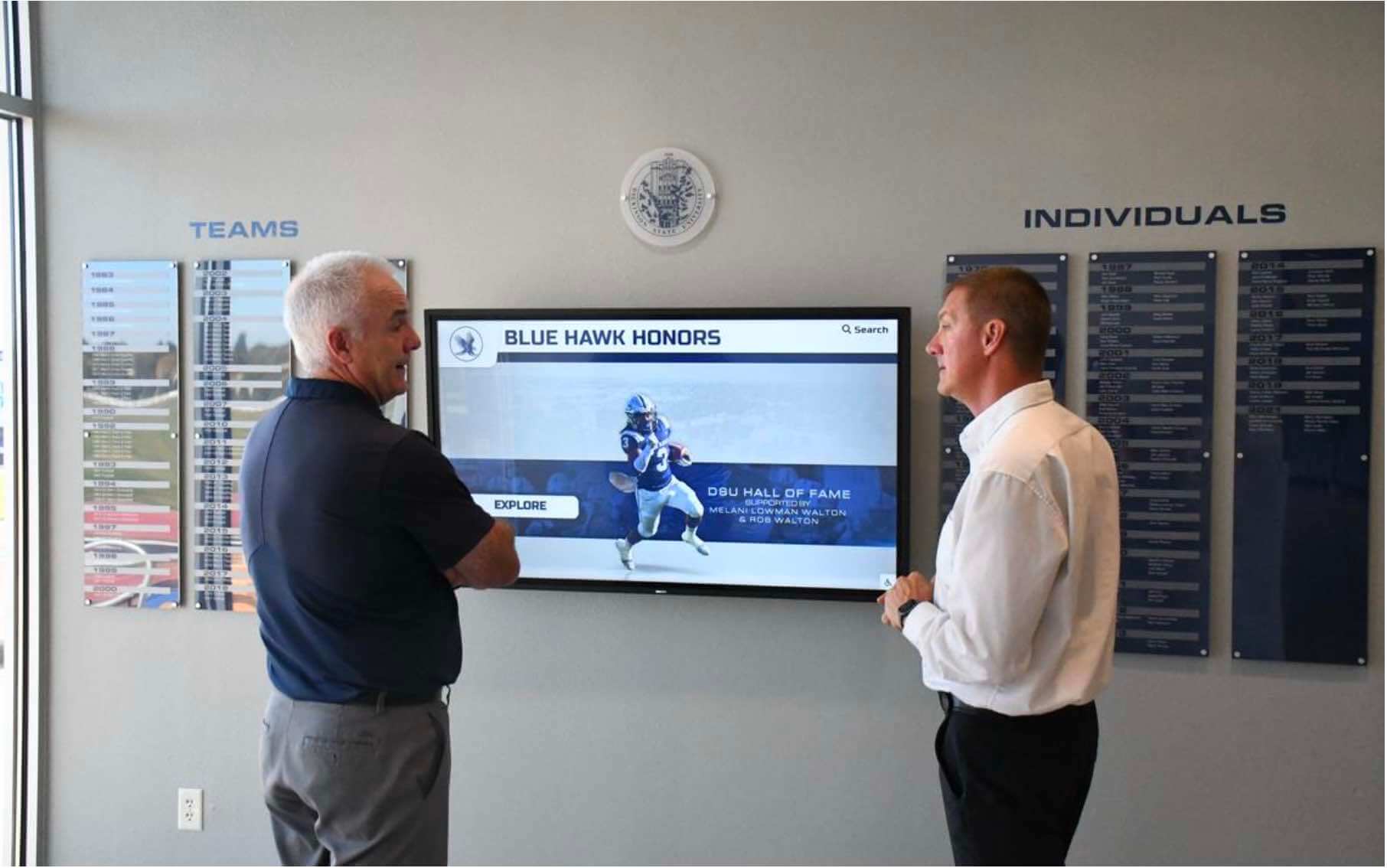
Interactive recognition displays invite extended exploration—visitors spend significantly more time with searchable digital content than with passive displays covering the same material
Key Specifications to Evaluate
When comparing interactive touch screen signage options, focus on the following specifications rather than relying on marketing descriptions alone.
Brightness (Nits)
For installations in lobbies with natural light or near windows, specify panels rated at 500 nits or above. Dimmer panels wash out in bright environments, making content difficult to read. For controlled-light environments like interior corridors with no windows, 400 nits is typically sufficient.
Touch Points
Multi-touch capacity determines which gestures users can perform. Systems supporting 10 or more simultaneous touch points allow natural pinch-to-zoom, two-finger scrolling, and multi-user interaction. Panels limited to 2–4 touch points feel constrained compared to modern smartphone expectations.
Response Time
Measure (or request documentation of) touch latency. Panels with latency above 50 milliseconds feel noticeably sluggish. Below 30 milliseconds, interactions feel natural. This specification is not always listed in vendor materials—ask for it specifically or test it in person.
Operating Temperature Range
Commercial environments vary. Displays installed near exterior doors experience temperature swings during cold months. Verify that the panel’s operating temperature range matches your installation environment, particularly in schools without climate control in certain spaces.
IP Rating (for Outdoor or High-Moisture Environments)
Standard commercial displays are not designed for outdoor exposure or high-humidity spaces like pool facilities. If your installation is in or near a natatorium, outdoor pavilion, or similar environment, specify panels with appropriate IP (ingress protection) ratings for moisture resistance.
Accessibility Features
For school and institutional installations, ADA compliance and WCAG accessibility standards are not optional considerations—they are legal and ethical requirements. Verify that the software platform meets WCAG 2.1 AA accessibility guidelines, including keyboard navigation support, sufficient color contrast, screen reader compatibility, and adjustable text sizing. Hardware considerations include mounting height that allows wheelchair access to the interactive zone (generally centering the touch-active area at 48 inches or below).
Ongoing Management After Installation
The technology represents only the initial investment. Interactive signage generates return through consistent content freshness and management. Installations that launch with strong content and then go unmanaged for months lose user engagement rapidly.
Content Update Cadence
Plan a specific schedule for content additions. For athletic recognition displays, this means adding new inductees and records as they occur, uploading season-end team photos, and updating achievement tallies annually. For academic recognition displays, it means adding honor roll lists each grading period, acknowledging scholarship recipients when announced, and featuring student accomplishments throughout the year.
Analytics Review
Most cloud-based platforms provide usage analytics. Review session counts, popular content, search terms, and peak usage times quarterly. These metrics reveal what users are looking for (and not finding), which content generates the most engagement, and whether usage is growing or declining after the initial launch period.
Digital awards display platforms designed for schools typically include analytics dashboards that help administrators understand how their recognition content is being used and which content categories drive the most engagement.
Hardware Maintenance
Commercial displays require periodic cleaning of the touch surface (using appropriate non-abrasive cleaners), inspection of mounting hardware for security, and verification that ventilation around the computing components remains unobstructed. Establish a semi-annual hardware inspection schedule covering these items.
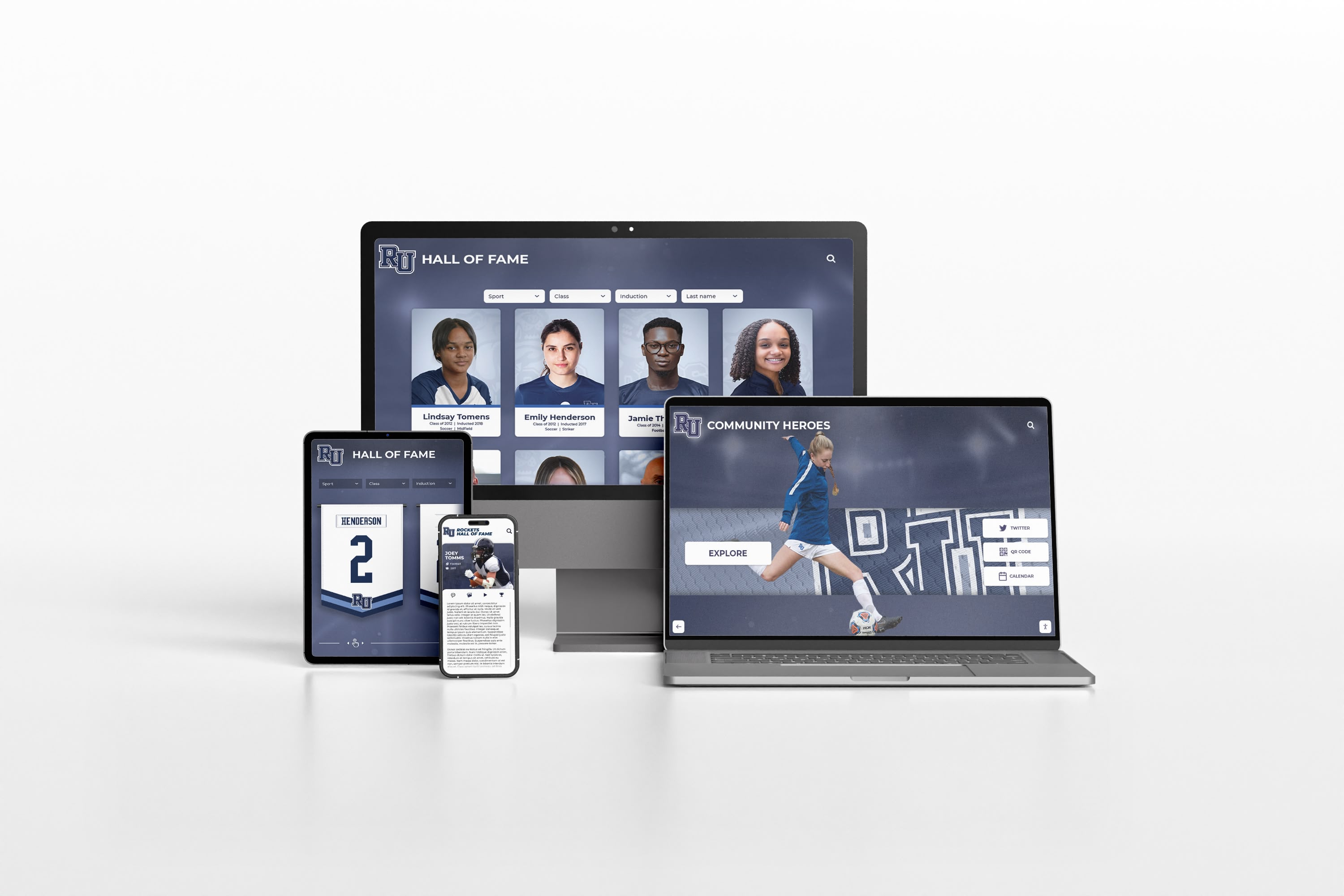
Platforms that extend content to mobile devices through QR codes multiply the audience for recognition content beyond visitors physically present at the display
Common Purchasing Mistakes to Avoid
Buying Consumer Electronics for Commercial Environments
Consumer televisions cost less than commercial panels, but they are not rated for the duty cycles of public installations. A consumer TV running 12+ hours per day in a lobby will fail earlier than a commercial display with an equivalent specification, eliminating the apparent savings and adding replacement cost and installation labor.
Selecting a Generic CMS Not Designed for the Use Case
General-purpose digital signage platforms handle content playlists and scheduled publishing well. They are not designed for the database-driven, search-enabled, profile-browsing applications that recognition and hall-of-fame displays require. Attempting to build those capabilities on top of a generic CMS typically requires expensive custom development and ongoing technical maintenance. Purpose-built platforms for recognition applications provide these features without customization.
Underestimating Content Development Time and Cost
Hardware can be delivered and installed in days. Digitizing decades of athletic records, writing individual profiles, scanning historical photographs, and organizing data into a structured database takes months. Projects that treat content as an afterthought launch with thin content libraries and disappointing user engagement. Allocate realistic time and budget for content development as a core project component.
Choosing a Vendor Who Won’t Provide References or a Live Demo
Any reputable interactive signage vendor should be able to demonstrate their platform working in a live installation environment—not a controlled demo using pre-loaded assets on a perfect network connection. Request access to an actual installation site or a live demo environment where you can test the features most important to your use case.
See Interactive Touch Screen Signage Built for Schools
Rocket Alumni Solutions provides purpose-built touchscreen recognition displays for schools, athletic programs, and institutions. The platform includes cloud-based content management, searchable athlete and alumni profiles, unlimited recognition capacity, QR code mobile access, scheduled publishing, and WCAG 2.1 AA accessibility compliance—all manageable without IT involvement.
Book a DemoWhy Schools Choose Purpose-Built Recognition Platforms
Schools evaluating interactive touch screen digital signage for recognition applications—athletic halls of fame, academic honor rolls, alumni directories, donor walls—face a choice between generic digital signage platforms and purpose-built recognition software.
Generic platforms require significant configuration and often custom development to deliver database-driven profile browsing, name search across large data sets, and the content structures that recognition applications require. Purpose-built platforms provide those capabilities out of the box, with interfaces designed specifically for the browsing patterns of students, alumni, families, and visitors.
Rocket Alumni Solutions is built specifically for this use case. The platform powers touchscreen recognition displays in schools and athletic programs, with features including:
- Unlimited recognition entries — no cap on athletes, alumni, donors, or academic honorees
- Cloud-managed content — updates published remotely without IT tickets or vendor requests
- Searchable profiles — visitors find specific individuals by name, sport, year, or category in seconds
- Scheduled publishing — future-dated content goes live automatically on the planned date
- QR code mobile access — visitors extend the display experience to personal devices
- WCAG 2.1 AA compliance — accessible to visitors with disabilities, meeting ADA requirements
- Sponsorship and donor integration — recognition content alongside supporter acknowledgment
- Multi-screen management — a single dashboard manages multiple displays across a facility
Evaluating digital hall of fame vendors on these specific capabilities—rather than general digital signage features—clarifies quickly which platforms are built for recognition applications and which require workarounds.
Digital trophy wall installations are one of the most common applications for schools transitioning from physical trophy cases to interactive digital displays—a transition that eliminates space constraints, eliminates maintenance of physical hardware, and opens unlimited recognition capacity for every program and every graduate.
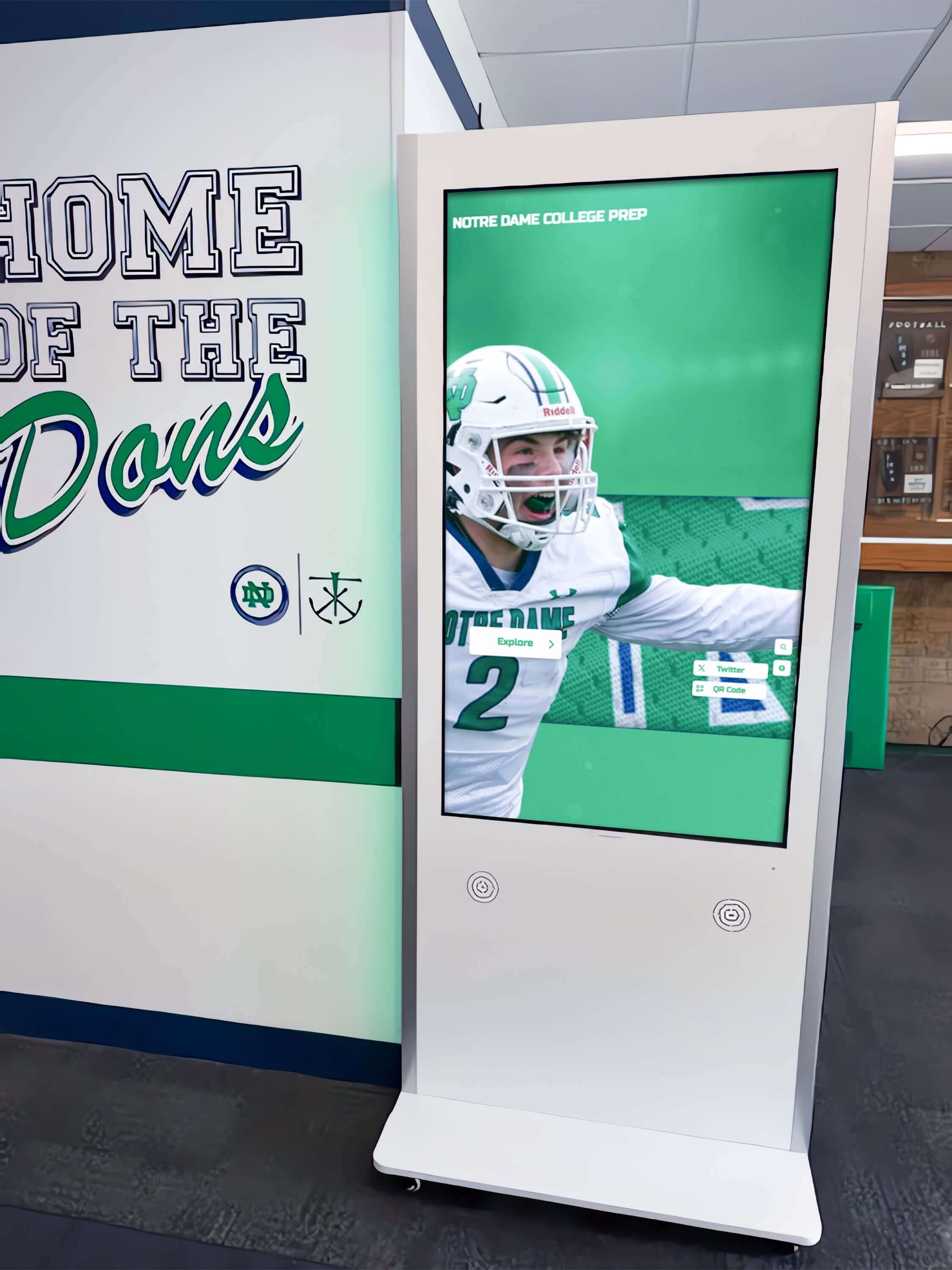
Purpose-built interactive recognition kiosks in school hallways replace multiple physical trophy cases while displaying unlimited content in a searchable, always-current format
Frequently Asked Questions
How much does interactive touch screen digital signage cost?
Costs vary significantly based on screen size, enclosure type, software platform, and content development requirements. A single wall-mounted 55-inch commercial touchscreen installation typically ranges from $8,000 to $20,000 including hardware, mounting, software licensing, and initial content setup. Freestanding kiosk enclosures and large-format installations carry higher hardware costs. Ongoing annual costs for cloud software and content management typically range from $2,000 to $6,000 per screen. Purpose-built recognition platforms may include content development services as part of initial implementation.
What is the difference between a digital signage player and a touchscreen kiosk?
A digital signage player is a computing device that drives content to a display. A touchscreen kiosk combines a display, touch capability, computing hardware, and often a physical enclosure into a complete standalone unit. Kiosks add physical durability and self-contained installation but cost more than player-plus-panel combinations. For permanent lobby or hallway installations, either approach works; kiosks are often preferred for high-traffic or repositionable applications.
Do interactive displays work without an internet connection?
Some platforms support offline content caching, where content is downloaded to local storage and the display operates independently of internet connectivity during outages. Others require continuous connectivity to function. If your facility has unreliable network infrastructure, confirm whether your chosen platform includes offline operation before purchasing.
How often does content need to be updated?
At minimum, content should be reviewed and updated quarterly. Recognition displays benefit from updates whenever new achievements occur—after each sports season, following each academic grading period, and when new inductees or honorees are announced. Cloud-based platforms allow updates in minutes without visiting the physical display, reducing the barrier to keeping content current.
Can one platform manage displays in multiple locations?
Yes, most commercial interactive signage platforms include multi-screen management through a single administrative dashboard. This allows institutions with displays in a gymnasium, main lobby, and library wing to manage all content centrally, publishing updates to specific screens or all screens simultaneously.
Conclusion
Interactive touch screen digital signage is not a single product—it is a system of components that must work together to deliver the browsing, searching, and navigation experiences that make the difference between displays visitors use and displays they ignore. The hardware layer (panel, touch sensor, computing device) determines physical performance. The software layer (CMS, database, navigation architecture) determines what users can do. The content layer determines whether those capabilities deliver genuine value.
For schools, athletic programs, and institutions investing in recognition displays, the most important factor after hardware quality is choosing a software platform built specifically for recognition applications rather than adapting a generic digital signage tool. Purpose-built platforms provide the search functionality, profile architecture, remote content management, and accessibility compliance that make interactive recognition displays genuinely useful for the students, alumni, families, and visitors who encounter them.
Rocket Alumni Solutions combines all of these elements in a platform designed specifically for schools—with implementation support, content management tools, and features built around the recognition use cases that matter most to educational institutions. Talk to our team to see how interactive touch screen digital signage works in practice and what your installation would require.
Live Example: Rocket Alumni Solutions Touchscreen Display
Interact with a live example (16:9 scaled 1920x1080 display). All content is automatically responsive to all screen sizes and orientations.